Infragistics NuGet Feed
Infragistics provides a private NuGet feed for licensed users to consume and add licensed Ignite UI for Blazor NuGet packages to their applications via the NuGet Package Manager.
This topic contains the following sections:
- Adding the Infragistics NuGet Feed with Visual Studio
- Adding the Infragistics NuGet Feed with the NuGet CLI
Adding with Visual Studio
1 - In Visual Studio, select Tools → NuGet Package Manager → Package Manager Settings.
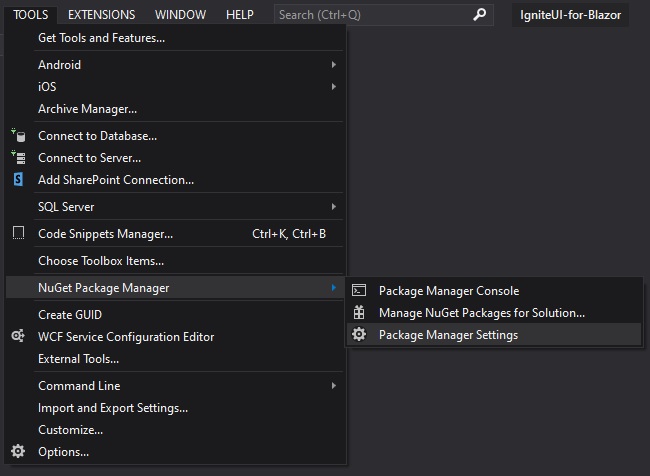
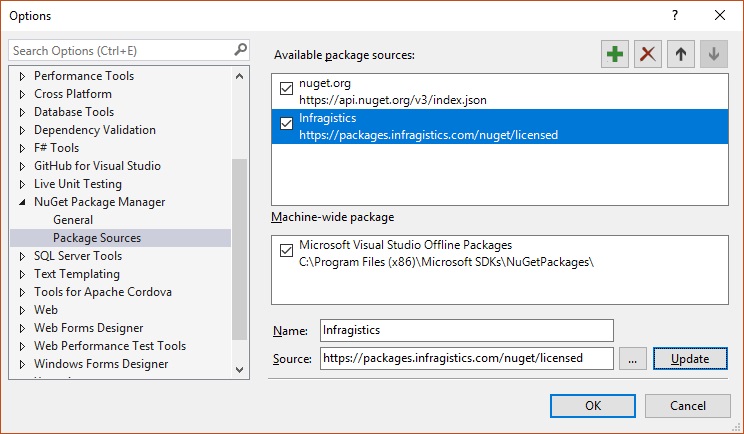
2 - In the Package Sources section, add a new package source by clicking the plus icon in the top right corner of the dialog.
- Set the Name to Infragistics
- Set the Source to https://packages.infragistics.com/nuget/licensed/v3/index.json if you prefer using the NuGet protocol version 3. Otherwise this must be set to https://packages.infragistics.com/nuget/licensed/
[!Note] For more details on whether to use v3 or older please visit: https://devblogs.microsoft.com/nuget/nuget-3-what-and-why/. Protocol v3 is applicable only when using newer versions of NuGet clients (after 2015). Older NuGet clients may or may not be compatible with v3.
Click the Update button, and then click OK to close the dialog.
[!Note] When adding a NuGet package from this source for the first time, you will be prompted for your Infragistics credentials.
Adding with the NuGet CLI
1 - Download the latest Nuget executable. Instruct your browser to save the file to a folder of your choice. The file is not an installer; you won't see anything if you run it directly from the browser.
2 - Open a command prompt in the folder path of the nuget.exe file you just downloaded.
3 - Execute the following command
//nuget protocol v3
nuget sources add -name "Infragistics" -source "https://packages.infragistics.com/nuget/licensed/v3/index.json" -username "your login email" -password "your password"

//nuget protocol v2
nuget sources add -name "Infragistics" -source "https://packages.infragistics.com/nuget/licensed" -username "your login email" -password "your password"
[!Note] The password will be stored encrypted in the NuGet config file and can only be decrypted in the same user context as it was encrypted. The default location of the config file can be found here
%AppData%\NuGet\NuGet.config