Skip to content

Infragistics Community Forum / Web / Ignite UI for ASP.NET Core / Summary Operands Asp.Net MVC Helper (.net core)

Summary Operands Asp.Net MVC Helper (.net core)

New Discussion
Andrew Wigglesworth
Andrew Wigglesworth asked on Dec 7, 2025 11:53 AM

Hi There,

I’m using the Summary feature of the grid, but i just want to display the Sum operand, not all of the values.

How can i go about doing this? IT’s a basic sum operation on the grid fields. Can i override the summary displays to include just the Sum total?

Here’s the code snipped in cshtml

features.Summaries().Type(OpType.Local).ColumnSettings(settings =>
{
settings.ColumnSetting().ColumnIndex(0).AllowSummaries(false);

});

Sign In to post a reply

Replies

  • 0
    Georgi Anastasov
    Georgi Anastasov answered on Jan 5, 2024 10:14 AM

    Hello,

    I have been looking into your question and to achieve your summary requirements, you must handle the ColumnSettings property of the summary feature.

    features.Summaries().ShowSummariesButton(false).ShowDropDownButton(false).ColumnSettings(settings => { })

    You can then perform different settings for each individual column. You will handle all columns of the number data type or only some of them according to your requirements with their column cases and you will handle the SummaryOperands property.

    settings.ColumnSetting().ColumnKey("Salary").SummaryOperands(so => { })

    With this property you can set only certain sum operands to be displayed in your grid for the specified column. By adding a SummaryOperand for the column and using the Type property you will pass the SummaryFunction.Sum operand and finally activate it with Active(true).

    so.SummaryOperand().Type(SummaryFunction.Sum).Active(true);

    This way you will enable only a certain summarization operand for a certain column.

    features.Summaries().ShowSummariesButton(false).ShowDropDownButton(false).ColumnSettings(settings =>
    {
              settings.ColumnSetting().ColumnKey("Salary").SummaryOperands(so =>
    
                         {
                                 so.SummaryOperand().Type(SummaryFunction.Sum).Active(true);
                         });
    })

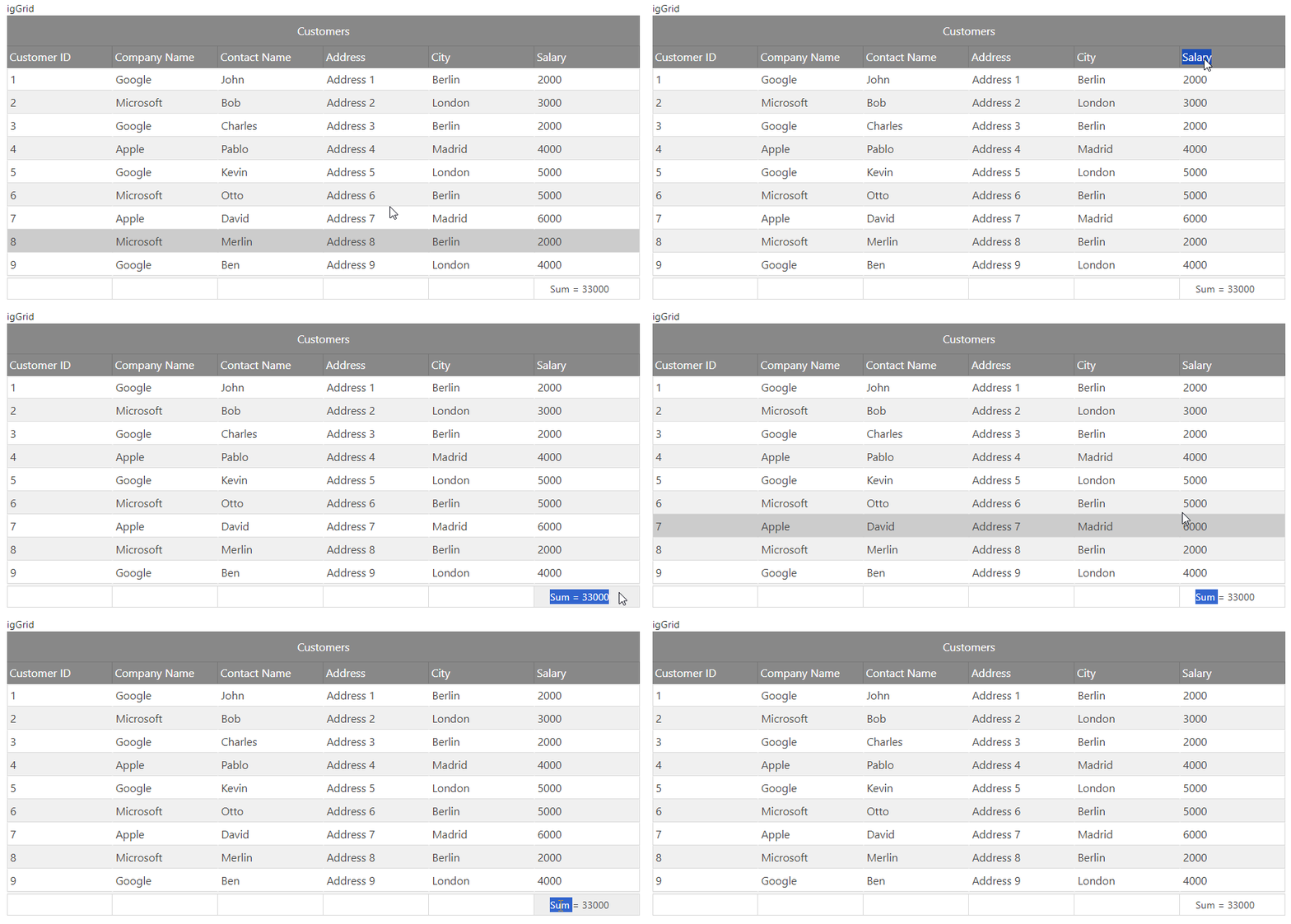
    The described scenario could be observed here:


    In addition, I have prepared small sample illustrating this behavior which could be found attached here. Please test it on your side and let me know how it behaves.

    If you require any further assistance on the matter, please let me know.

    Regards,

    Georgi Anastasov

    Entry Level Software Developer

    Infragistics

  • 0
    Goku Customer
    Goku Customer answered on Feb 23, 2024 2:16 AM

    To display only the sum total in the Summary feature of the grid, you can override the summary displays to include just the sum operand. Since you're using the Summary feature in a grid, you can customize the column settings to achieve this.

    Here's an example of how you can modify the column settings in your cshtml code snippet:

    features.Summaries().Type(OpType.Local).ColumnSettings(settings =>
    {
    settings.ColumnSetting().ColumnIndex(0).AllowSummaries(false); // This line disables summaries for all values in the specified column
    });

    By setting AllowSummaries(false) for the specific column index, you can prevent all values from being included in the summaries, ensuring that only the sum total is displayed.

    For more detailed guidance on customizing the Summary feature in your grid, you can refer to the documentation provided by your grid component or framework.

    Additionally, if you're interested in managing your electricity bills online, you can easily do so through the FESCO website. Simply visit FESCO e-bill to access your bills conveniently and manage your payments effectively.

    Let me know if you need further assistance!

  • 0
    Kim Alex
    Kim Alex answered on May 7, 2024 6:00 PM

    To show only the total sum in the Summary section of the grid, you can customize the display by focusing solely on the sum operand. This can be achieved by adjusting the column settings within your cshtml code snippet as follows:

    “`cshtml
    features.Summaries().Type(OpType.Local).ColumnSettings(settings =>
    {
    settings.ColumnSetting().ColumnIndex(0).AllowSummaries(false); // This line disables summaries for all values in the specified column
    });
    “`

    By setting `AllowSummaries(false)` for the designated column index, you ensure that only the sum total is presented, excluding individual values from the summaries.

    For further instructions on tailoring the Summary functionality within your grid, consult the documentation provided by your grid component or framework.

    Moreover, if you're interested in managing your electricity bills online, FESCO offers a convenient solution. Visit the Fesco bill website to effortlessly access and oversee your bills, enabling effective payment management.

    Feel free to reach out if you require additional support!

  • 0
    Андрй Федорчук
    Андрй Федорчук answered on May 15, 2024 1:07 PM

    Writing a research paper, especially a research paper, requires a lot of time, effort and deep knowledge in the chosen field. When I had a need to write a research paper, I turned to domypapers.com for help.

    The service “Write My Research Paper: Help at Any Time” allowed me not only to save time, but also to get a high-quality research paper done by professional writers.

    One of the main advantages of working with domypapers.com https://domypapers.com/research-papers/ was the ability to communicate with my personal writer throughout the writing process. This allowed me to keep abreast of any changes and make suggestions at every stage of the writing process.

    My research paper was completed on time and fully complied with all the requirements of my university and scientific standards. I was pleasantly surprised by the high quality and professionalism of domypapers.com team.

    In addition, domypapers.com service offers assistance in writing research papers on various subjects and levels of complexity, and all this at affordable prices.

  • 0
    Off Page
    Off Page answered on Jun 15, 2024 7:29 AM

    You can override the summary displays to include only the sum operand in order to display only the sum total in the grid's Summary feature. You can do this by adjusting the column settings because you're using the Summary function in a grid.

    This is an illustration of how to change the column settings in your piece of cshtml code:

    characteristics.Summary().OpType.Local is the type.ColumnSettings(configuration =>
    settings.ColumnSetting function.ColumnIndex(0).AllowSummaries(false); // All values in the designated column will not have summaries enabled by this line });

    You may ensure that just the sum total is included in the summaries by setting AllowSummaries(false) for the particular column index. This will prevent all values from being included in the summaries.

    To further customize the Summary feature in your grid, see the documentation that your grid component or framework has to offer.

    Furthermore, click here myvipbio.com/…/

  • 0
    Gcian Vinez
    Gcian Vinez answered on Jul 14, 2024 6:04 PM

    Hi There,

    To display only the sum operand in the Summary feature of your grid and not all the values, you can customize the summary settings to include just the sum total. Here is how you can override the summary displays in your code:

    @(Html.Kendo().Grid<YourModel>()
    .Name("Grid")
    .Columns(columns =>
    {
    columns.Bound(p => p.YourField).Title("Your Field Title");
    // Other column definitions
    })
    .DataSource(dataSource => dataSource
    .Ajax()
    .Read(read => read.Action("YourAction", "YourController"))
    .Aggregates(aggregates =>
    {
    aggregates.Add(p => p.YourField).Sum();
    })
    )
    .FooterTemplate("#= kendo.toString(sum, 'n2') #") // Custom footer template to display only sum
    )

    Here's a brief explanation of the key parts:

    • Aggregates: This part adds the sum operation for the specified field.
    • FooterTemplate: This is a custom footer template that formats and displays only the sum total.

    Make sure to replace YourModel, YourField, YourAction, and YourController with the actual names used in your application.

    This setup ensures that only the sum total is displayed in the footer of the grid.

    Moreover, if you're interested in managing your electricity bills online, FESCO offers a convenient solution. Visit the FESCO Online Bill website to effortlessly access and oversee your bills, enabling effective payment management.

    Feel free to reach out if you require additional support!

  • 0
    asif ali
    asif ali answered on Aug 21, 2024 7:11 AM

    To display only the Sum operand in the grid summary and exclude other values, you can configure the summary settings to focus solely on the Sum operation. It seems you're already using the Summary feature, so you just need to ensure that only the Sum is being applied. Here’s how you can adjust your code to display just the Sum:

    csharp

    Copy code
    features.Summaries().Type(OpType.Local).ColumnSettings(settings =>
    {
    settings.ColumnSetting().ColumnIndex(0).AllowSummaries(true)
    .SummaryType(SummaryType.Sum);
    });

    Make sure that the AllowSummaries is set to true and specify SummaryType.Sum to ensure that only the Sum is shown.

    For further details or more complex configurations, feel free to visit FESCO Bill.

    Best regards.

  • 0
    Marvin Customer
    Marvin Customer answered on Sep 10, 2024 11:44 AM
    This method for customizing the grid summary in ASP.NET MVC is a great way to display only the sum operand without showing all values. It simplifies the output, making data presentation clearer and more efficient. Also check out the fesco bill online here.
  • 0
    Mark Customer
    Mark Customer answered on Sep 16, 2024 10:16 AM

    To display only the Sum operand in the grid summary and exclude other values, you can override the display settings in the grid configuration. The following snippet should help you modify the summary settings to show just the sum:

    1. Use the AllowSummaries(false) for other operations that you don't need.
    2. Customize the summary display to show only the Sum.
    3. Adjust the ColumnSettings to target the specific column you want the sum for.

    For HESCO bill https://www.hescoebill.pk/, if you're summarizing bill amounts from multiple users, the same concept could apply where only the total sum of all bills is displayed without listing each individual bill amount.

  • 0
    Michael
    Michael answered on Oct 16, 2024 6:24 AM

    To show only the total sum in the Summary section of the grid, you can customize the display by focusing solely on the sum operand. This can be achieved by adjusting the column settings within your cshtml code snippet as follows:

    “`cshtml
    features.Summaries().Type(OpType.Local).ColumnSettings(settings =>
    {
    settings.ColumnSetting().ColumnIndex(0).AllowSummaries(false); // This line disables summaries for all values in the specified column
    });
    “`

    By setting `AllowSummaries(false)` for the designated column index, you ensure that only the sum total is presented, excluding individual values from the summaries.

    For further instructions on tailoring the Summary functionality within your grid, consult the documentation provided by your grid component or framework.

    By the way, if you're interested in managing your electricity bills online, SEPCO offers a convenient solution. Visit the sepco bill website to access your bills.

  • 0
    Aslam Customer
    Aslam Customer answered on Oct 25, 2024 11:04 AM

    To display only the Sum operand in the grid summary, you can adjust the summary settings to show just the final total, not each individual value. Update the summary configuration to exclude other operands and focus on Sum only. Here’s an example:

    features.Summaries().Type(OpType.Local).ColumnSettings(settings => { settings.ColumnSetting().ColumnIndex(0).AllowSummaries(false); settings.ColumnSetting().ColumnIndex(1).SummaryOperands(SummaryOperand.Sum); });

    This will ensure your SEPCO bill grid only displays the Sum total for the selected columns.

  • 0
    Njk Vhk
    Njk Vhk answered on Oct 25, 2024 11:48 AM

    To show only the Sum operand for your GEPCO bill grid, simply adjust the summary settings as shown. This configuration will display the total sum only, without individual values in each row.

    • 0
      Kale Dineal
      Kale Dineal answered on Oct 28, 2024 9:36 PM

      To display only the total sum in your GEPCO bill grid, modify the summary settings as indicated. This adjustment will show just the overall total, omitting the individual values for each row.

  • 0
    Mark Customer
    Mark Customer answered on Dec 7, 2024 7:04 AM

    The code snippet disables summary calculations for the first column by setting AllowSummaries to false. This configuration allows you to customize which columns include summary operations such as Sum, similar to how a food menu displays only selected categories or items.

    • 0
      Usman Razzaq
      Usman Razzaq answered on Feb 18, 2025 4:51 AM

      To show only the Sum operand for Fesco bill online grid, simply adjust the summary settings as shown. This configuration will display the total sum only, without individual values in each row.

  • 0
    AlexJ Juvion
    AlexJ Juvion answered on Jan 22, 2025 9:24 AM

    Interesting discussion on using ASP.NET MVC with Ignite UI! For those balancing technical coursework and assignments, the coursework help service can provide expert assistance in ensuring your work is top-notch and well-structured.

  • 0
    Ashton Davis
    Ashton Davis answered on Aug 24, 2025 10:43 AM

    Thumbnails are not just graphics—they are psychological tools designed to influence decisions. Every color, face, and shape has an impact on how viewers perceive your video. That’s why using tools like YT Thumbnail Saver to study viral designs can give you a massive advantage. You’ll understand the psychology behind successful thumbnails and apply it to your own channel.

  • 0
    Off Page
    Off Page answered on Oct 25, 2025 4:49 PM

    features.Summaries().Type(OpType.Local).ColumnSettings(settings =>
    {
    settings.ColumnSetting()
    .ColumnKey("Amount")
    .SummaryOperands(operands =>
    {
    operands.OperandName("Sum").Active(true);
    });
    });

    This ensures that only the Sum total is shown in the grid footer, without other operands like Count, Min, or Max. You can also control this via the DisplayFormat property if supported in your grid configuration

    Em projetos que envolvem cálculo de horas, a calculadora de horas pode ser facilmente integrada para somar períodos automaticamente.

  • 0
    Emma Taylor
    Emma Taylor answered on Oct 31, 2025 10:50 AM

    This method for customizing grid summaries in ASP.NET MVC is great for scenarios where clean output is required, especially in dashboards or billing systems. I've also worked on similar features while building tools to help users check their utility data. You can check it online here, it might give you some practical ideas for displaying summary values efficiently.

  • 0
    Wasim Abbas
    Wasim Abbas answered on Dec 7, 2025 11:53 AM

    In ASP.NET MVC (or .NET Core), when you’re using the Summary feature of a grid and only want to show the Sum operand instead of all available summary types (like Average, Count, Min, Max), you can control this through the ColumnSettings configuration.

    Inside your summary configuration, simply define the specific operand you want — in this case, Sum — and disable the others. Here’s how you can achieve it:

    features.Summaries()
    .Type(OpType.Local)
    .ColumnSettings(settings =>
    {
    settings.ColumnSetting()
    .ColumnKey("TotalAmount") // replace with your column name
    .AllowSummaries(true)
    .SummaryOperands(operands =>
    {
    operands.OperandName("Sum");
    });
    });

    This ensures the grid displays only the Sum total for the specified column. If you want to format or style that summary, you can handle it through the ClientEvents.SummariesRendered or customize the formatter function to display the result exactly how you prefer.

    Also, when you need external data verification or calibration logic in similar UI testing or analytics dashboards, tools like <a href="">mouse-dpi-analyzer.com/">Mouse DPI Analyzer</a> can help demonstrate how precise calculations and measurements can be implemented cleanly within a user interface — much like maintaining data accuracy within a grid summary feature.

    This approach provides full control over which operands appear, making your grid summaries cleaner and more purposeful.

  • You must be logged in to reply to this topic.
Discussion created by
Favorites
Replies
Created On
Last Post
Discussion created by
Andrew Wigglesworth
Favorites
0
Replies
20
Created On
Dec 07, 2025
Last Post
2 months, 3 weeks ago

Suggested Discussions

Created by

Created on

Dec 7, 2025 11:53 AM

Last activity on

Feb 19, 2026 7:52 AM